
Quick Start Guide
Everything starts here.
Download the Spark app, sign up, and we'll take care of the rest.
Step 1
Spark Setup
Go from download to creation in minutes.
* Supports Windows 10/11 and macOS 11+
Using Linux? View setup guide
Using Linux? View setup guide
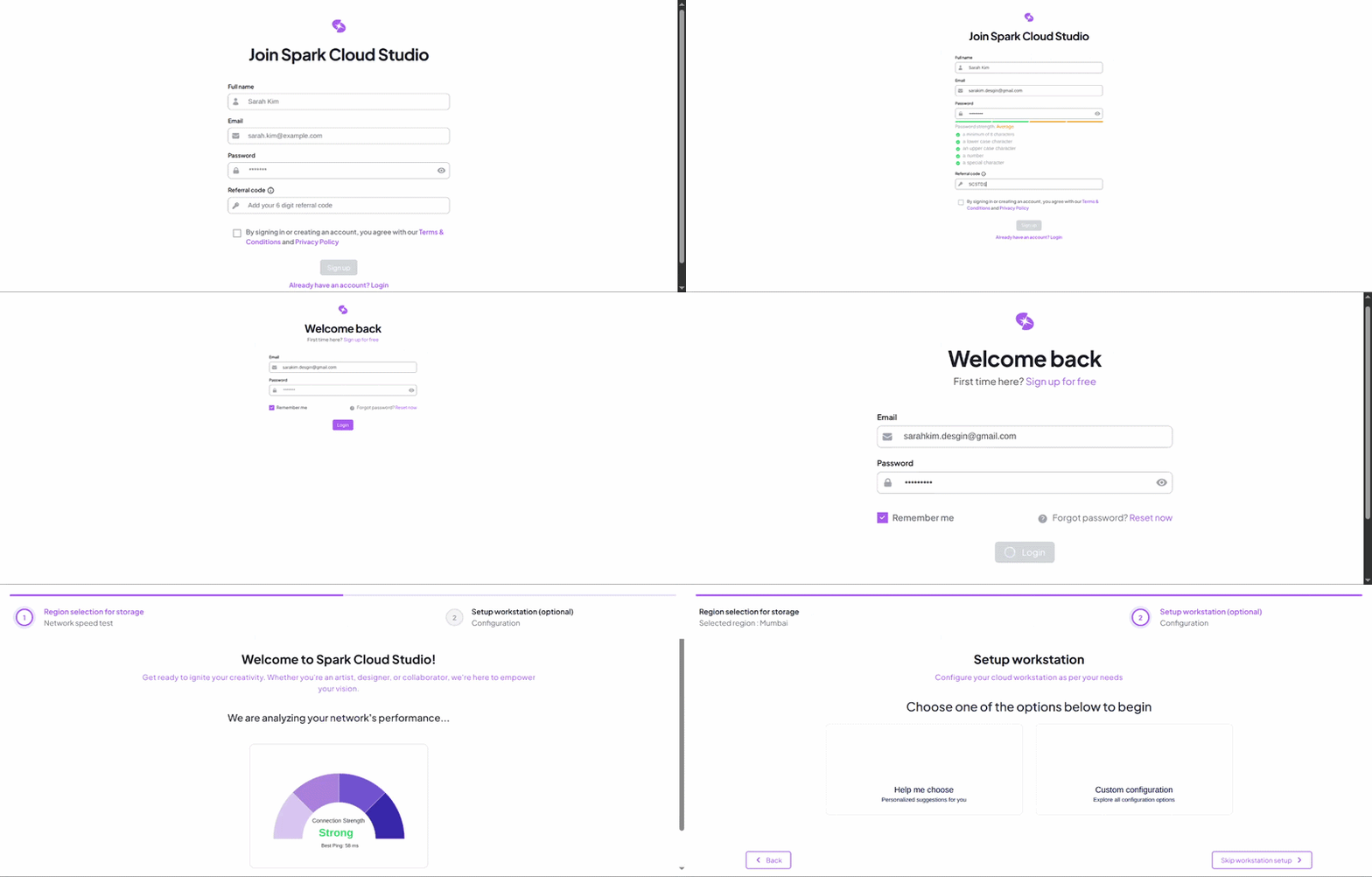
- Install: Run the downloaded installer
- Activate: Verify your account
-
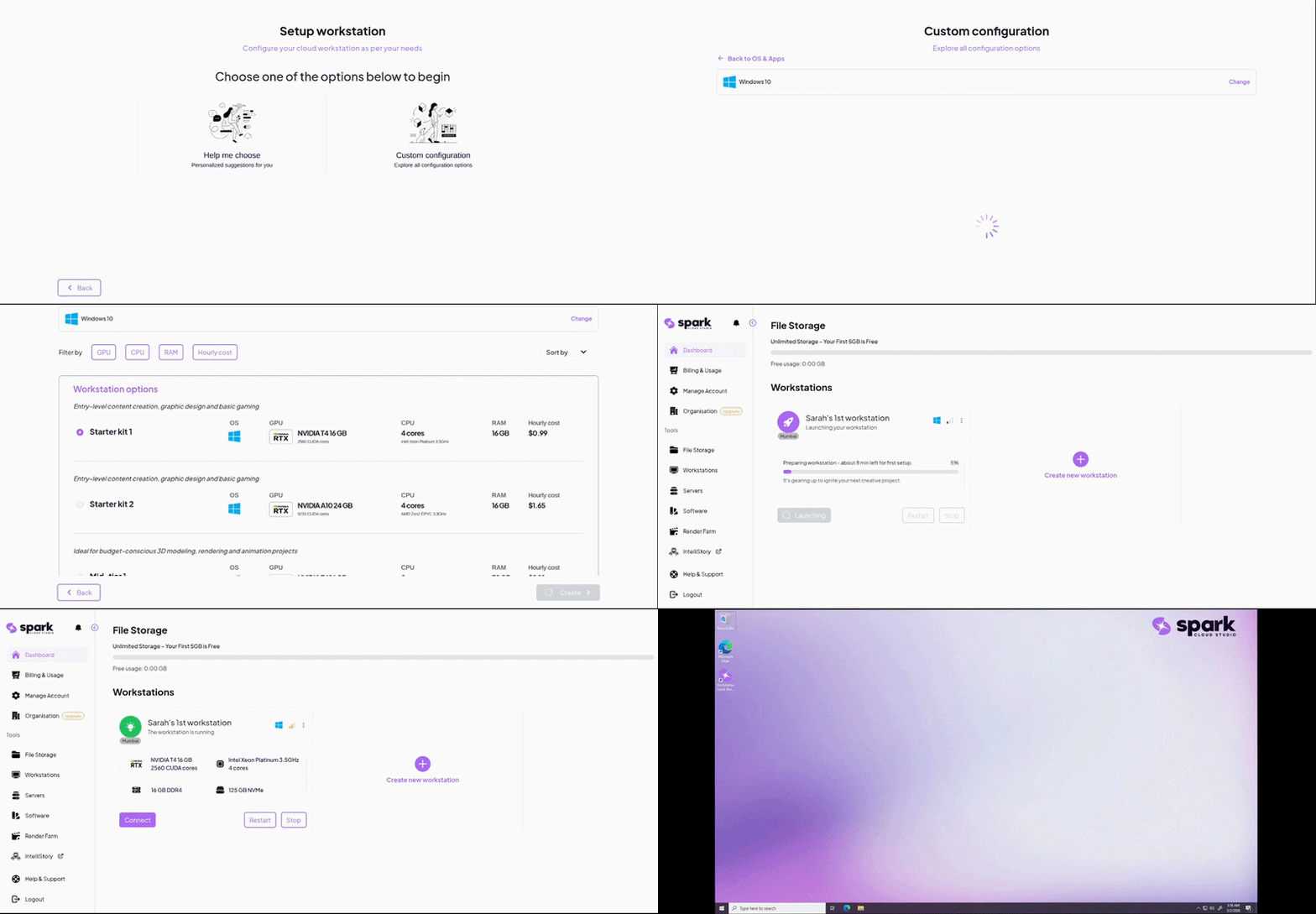
Create: Launch your workstationYour first workstation launch can take slightly longer due to initial setup and configuration. Future launches will be quicker.
Step 2
Sync & Manage Files
Your local workflow, mirrored to the cloud.
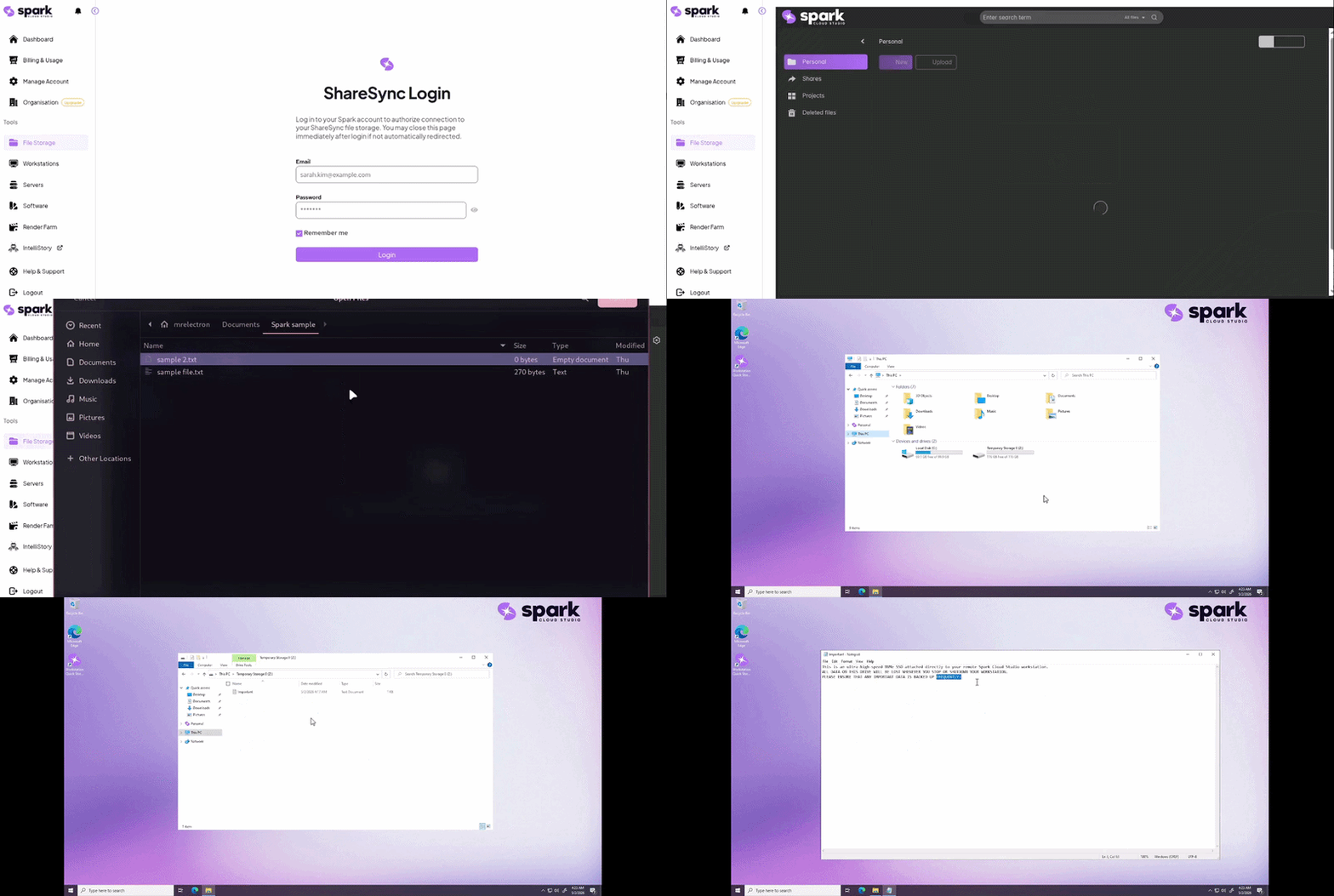
- Sign In: Access ShareSync storage
- Mirror: Sync files automatically
Quick Sync Check & Storage Guide
1. Verify Sync Performance
1
Upload Test File
Download this small text file and upload it via the File Storage tab in your app.
Get Test File2
Confirm Sync
On your workstation, open the Personal Drive. If the file is there, your sync is active!
2. Storage Types & Tips
ShareSync:
Personal drive files sync
automatically across all your devices.
Local
Storage:
Files stay on this machine
only. They persist across restarts but are not shared.
Temporary
Storage:
High performance temp storage
for
caching or intermediate processing.
🎉
You're all set!
You're now ready to create, connect, and collaborate from anywhere.
Need more help?
Explore our detailed documentation or reach out for direct support.